Creating a workout
- Tap New workout.
- Give your workout a name.
- Use − and + to set the times: warm-up, work, rest, the number of rounds and sets, the rest between sets and the cool-down.
- Tap Save to iCloud.
At the top you immediately see the total time, with a coloured timeline: purple is work, yellow is rest, the gradient is warm-up and cool-down.
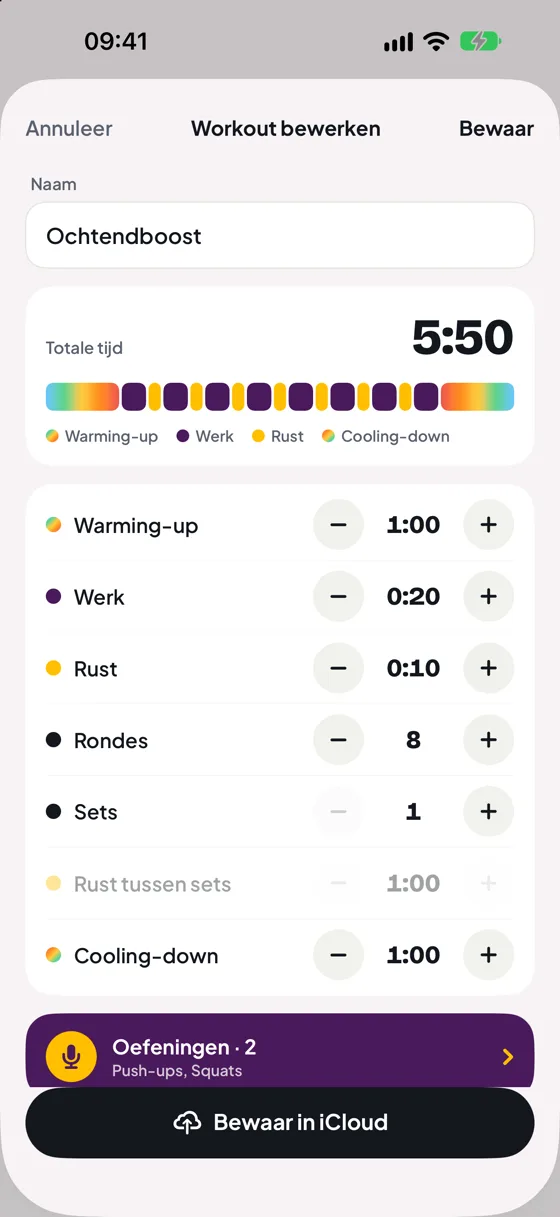
How the time is calculated
A workout goes like this: warm-up, then per set work and rest alternating, then rest between sets, and finally the cool-down.
After the last round of a set there is no regular rest: you go straight to the rest between sets or the cool-down. After the last set there is no rest between sets. That way the total time matches what you actually do.
My workouts
Under Workouts (or the My workouts tile) you find all your workouts. Tap a workout to open and edit it. The ▶ button starts it right away.
Change the order by pressing and holding a workout, then dragging it.
Swipe for more actions
Swipe across a workout for more actions:
- Left: Edit and Delete.
- Right: Start and Duplicate.
Swipe all the way and DoHiit runs the outer action straight away. You choose which actions appear in Settings › Swiping your workouts.
The first time you see a list, the top workout briefly slides aside to show what is underneath.
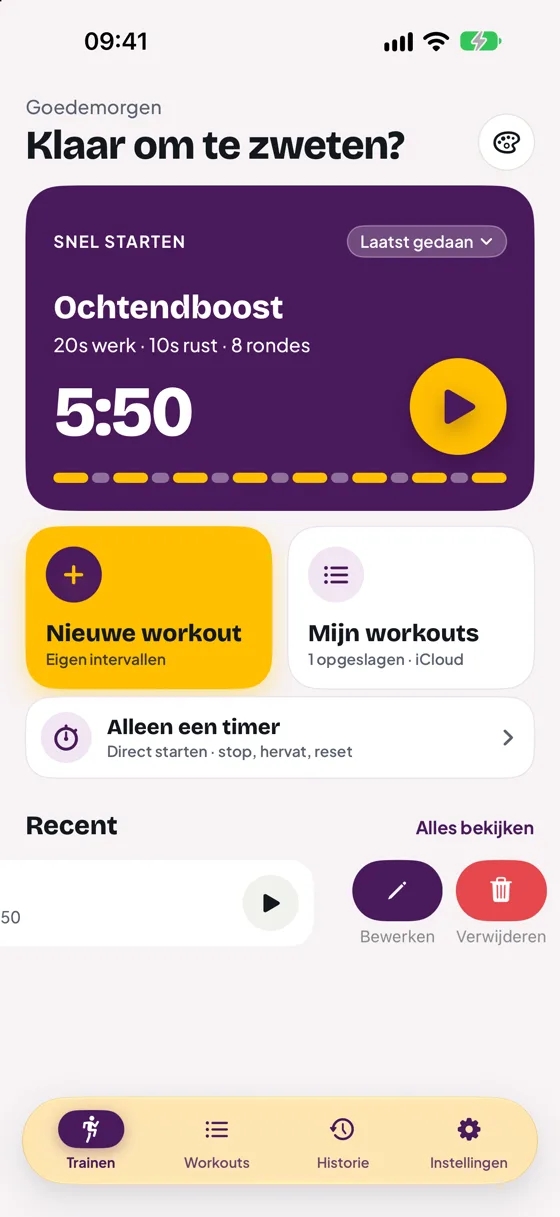
Deleting and undo
When you delete, DoHiit first asks whether you are sure. If you turn off Confirm before deleting, the workout disappears immediately and you can bring it back for a few seconds with Undo.
Your history is always kept, even if you delete the workout.
Still stuck?
Email us and we'll help you out. Tell us which iPhone you have and which version of iOS.